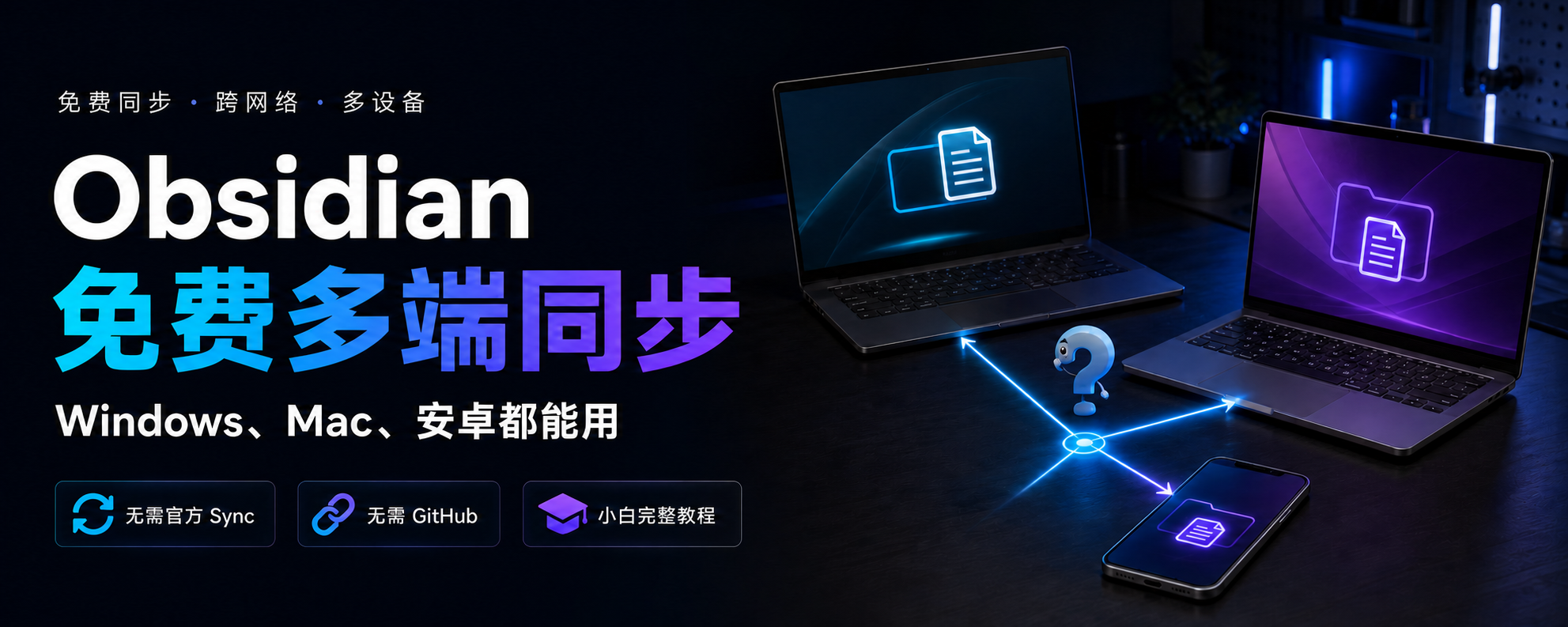
Obsidian Sync Plus costs $96 per year. What you are buying is convenience.
The $96 figure is the annual Plus plan. If you only use one small vault, the annual Standard plan is $48. This guide is for people who are comfortable maintaining synchronization themselves.
If you only want one vault shared across Mac, Windows, and Android, the choice depends on whether you are willing to handle device pairing, online availability, file conflicts, and backups yourself.
Mac at home, Windows at work, and an Android phone in your pocket. The three devices do not need to be on the same Wi-Fi to keep one Obsidian vault in sync.
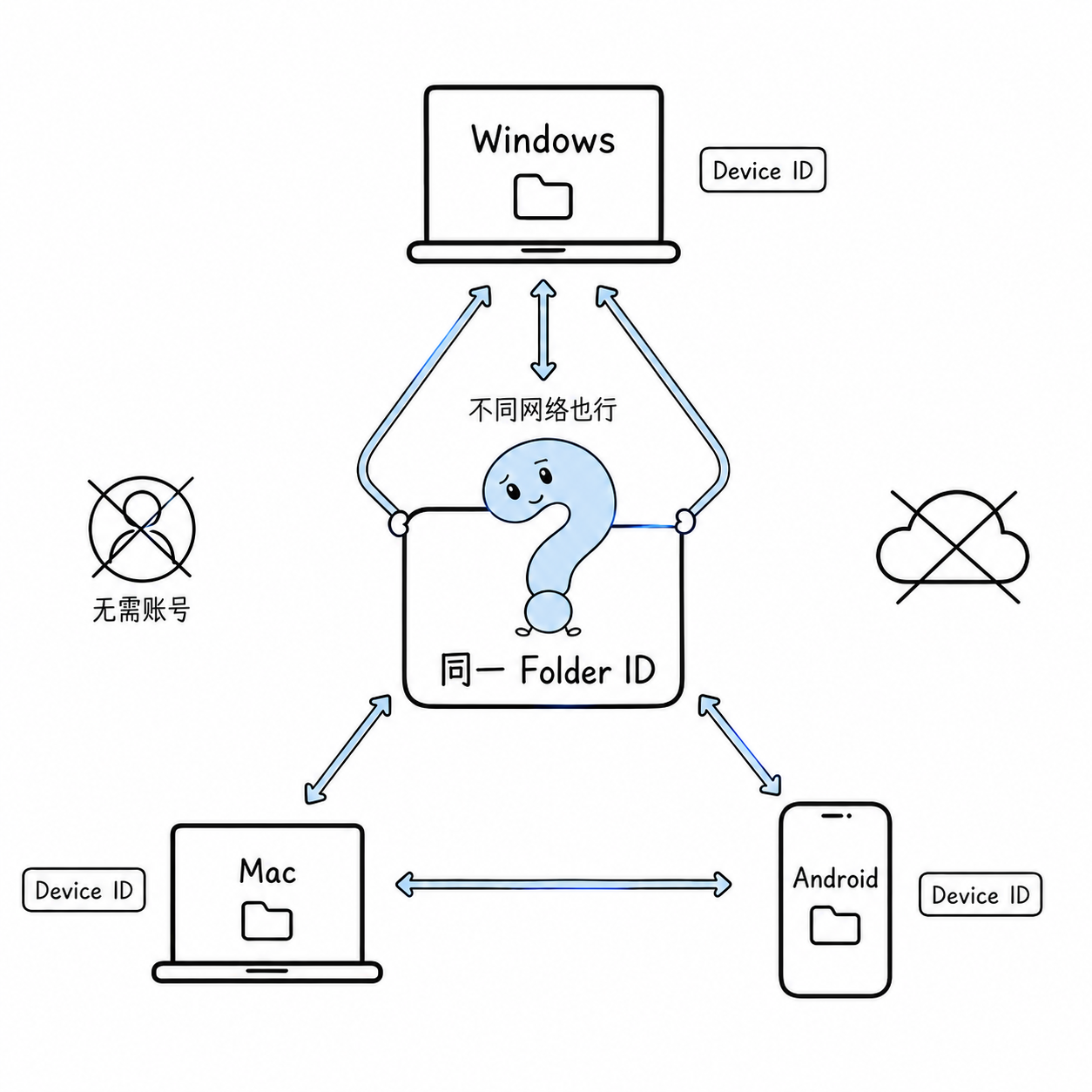
An Obsidian vault is a normal local folder. Syncthing keeps a selected folder consistent across devices. Each device trusts the others through a Device ID, and the same Folder ID is shared with the devices that should receive the files.
This guide lays out the free setup and its trade-offs. It does not use GitHub or a regular cloud-drive folder, and the software itself has no sync subscription fee. At least two participating devices must be online for a while, conflicts need human review, and independent backups are still necessary.
Official Sync still has value through encryption, cloud storage, file recovery, and background merging. Syncthing is for people who are comfortable maintaining folder synchronization themselves.
You can connect only a Mac and Android, or add Windows and build a fully connected three-device group. A device that is not added will not receive the vault.
This guide covers Android. iPhone requires a separate setup.
Back up before the first sync
Choose the device that has the most complete copy of your notes. This is the source device.
The other devices will receive the vault.
For the first sync, the destination folder on every receiving device should be empty. Do not let several devices start with different copies of the same notes.
Close Obsidian on every related device. Compress the source vault into a ZIP file and copy that ZIP somewhere outside the folder you are about to sync.
If the vault currently lives inside OneDrive, Dropbox, iCloud, or Google Drive, copy it to an ordinary local folder first. Two sync services writing to the same vault make conflicts much harder to understand.
Recommended paths:
Windows
C:\Users\your-name\ObsidianVaults\MainVaultMac
/Users/your-name/ObsidianVaults/MainVaultAndroid
/storage/emulated/0/Documents/Obsidian/MainVault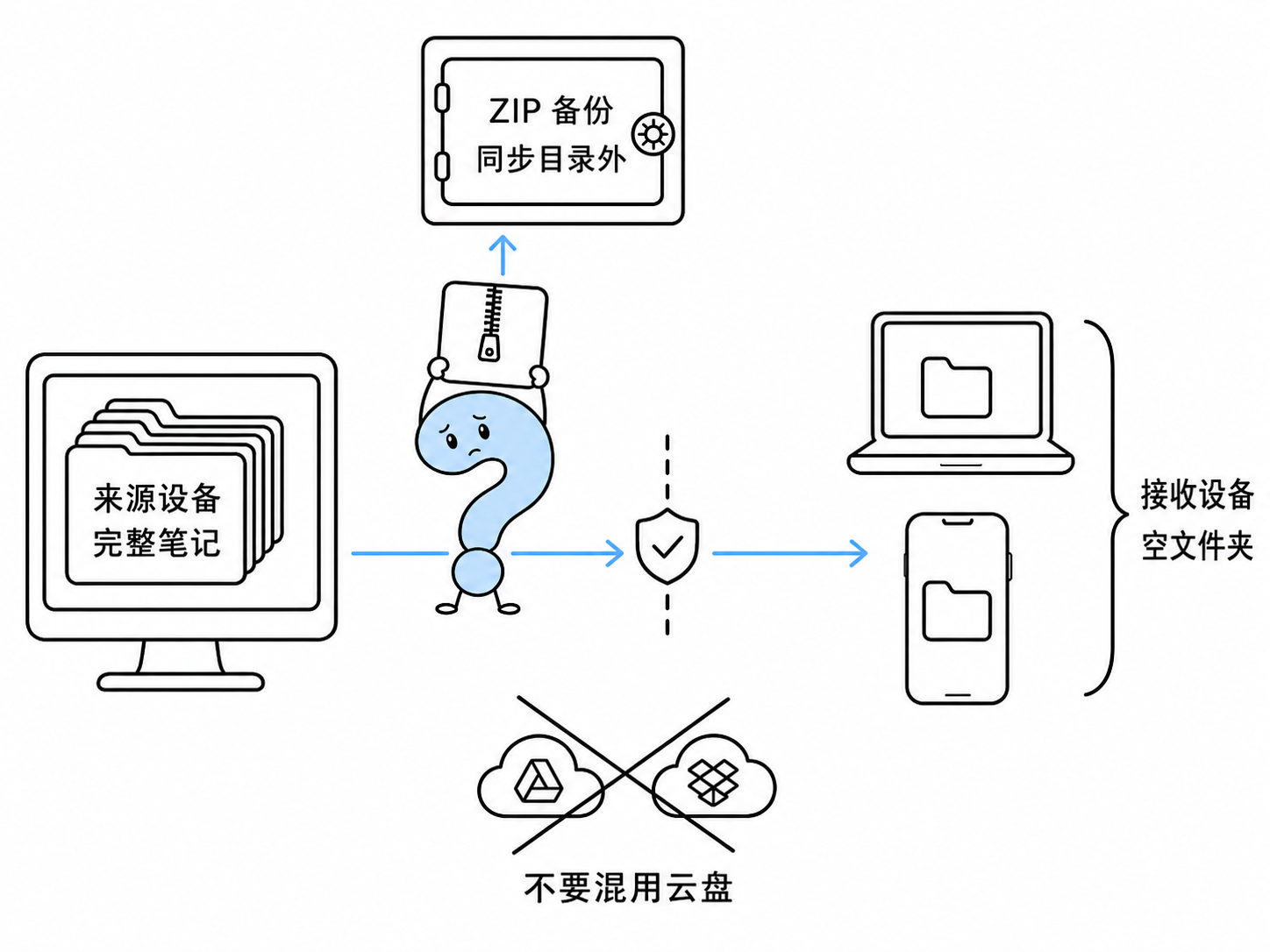
Install Syncthing
Install it only on the devices you plan to use.
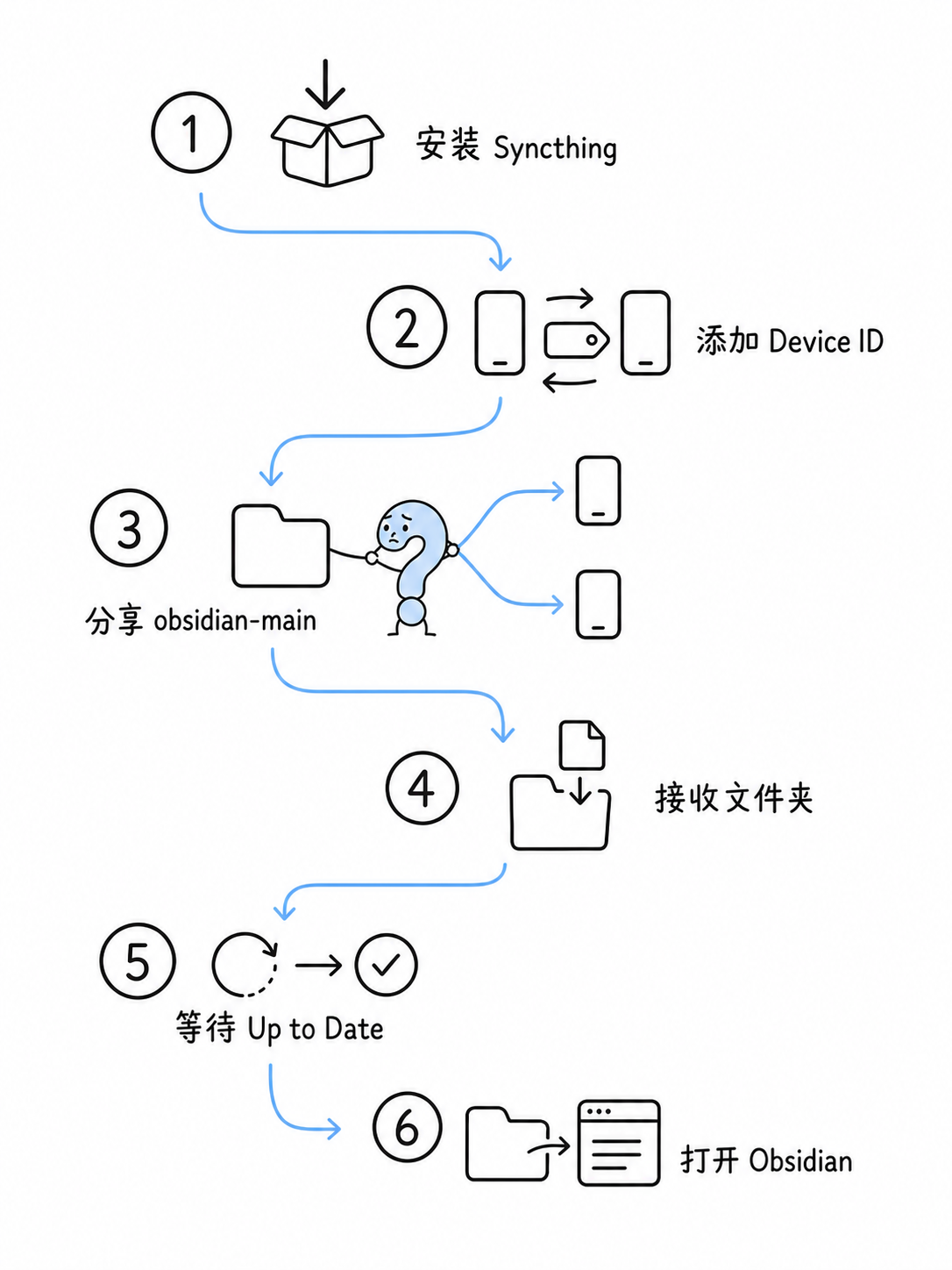
Keep three status labels in mind while following the guide.
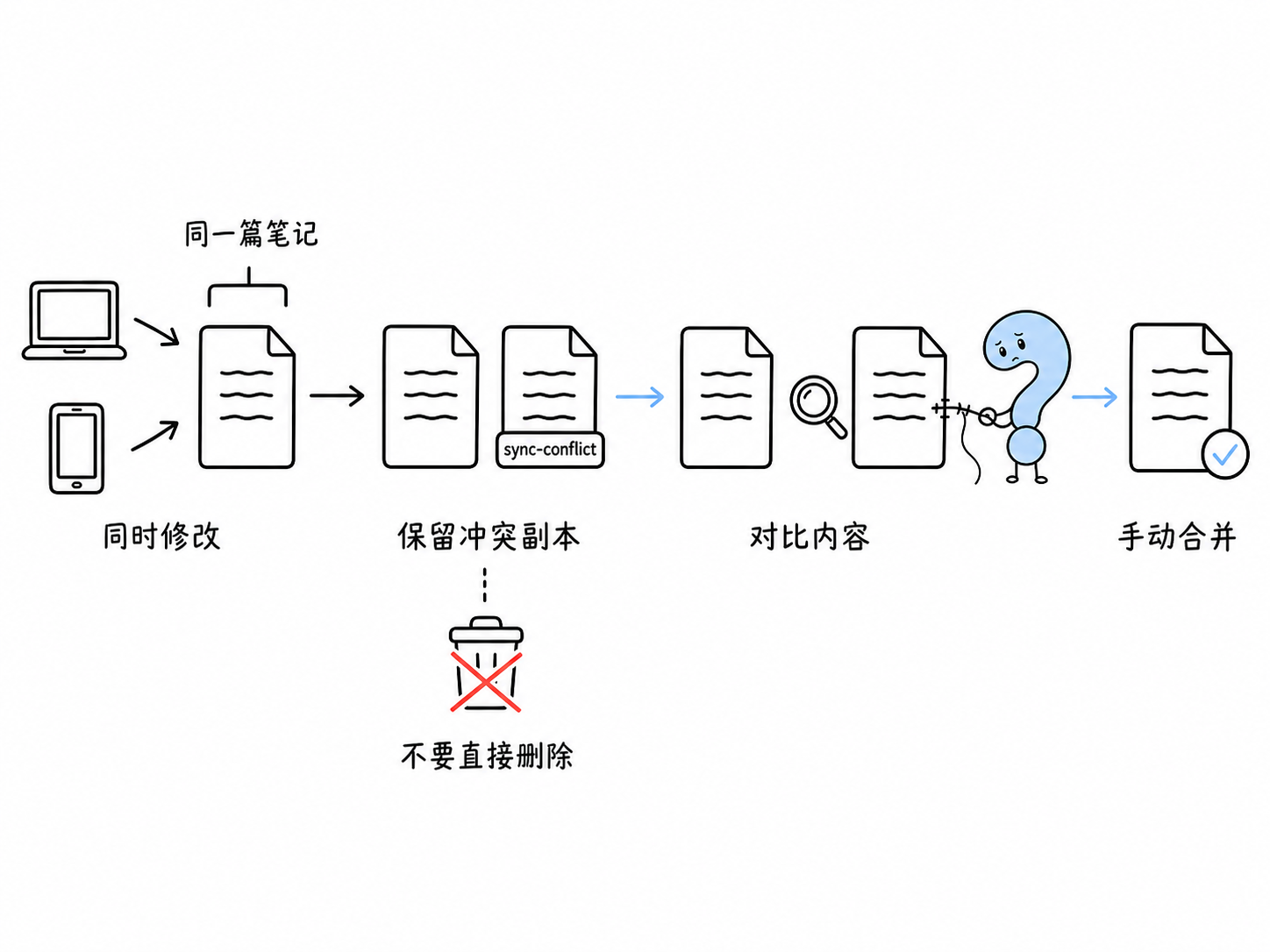
Connectedmeans the devices know and trust one another.Up to Datemeans the files have finished syncing.sync-conflictmeans the same note was edited concurrently and needs a manual merge.
Windows
Open Syncthing Windows Setup and download the latest .exe installer.
Use these choices during setup.
- Install for the current user.
- Keep launch at user logon enabled.
- Allow the Windows Firewall rule.
- Leave the other options at their defaults.
The browser will usually open:
http://127.0.0.1:8384The Syncthing page confirms that it is running.
Open Actions, then Settings, and name the device:
Windows-PCMac
Open Syncthing for macOS and download the latest version.
- Drag the app into Applications.
- Launch Syncthing.
- Allow network access when macOS asks.
- Find the Syncthing icon in the menu bar.
- Open Preferences.
- Enable launch at login.
Open the Syncthing page from the menu bar and name the device:
MacIf macOS blocks the first launch, open System Settings, go to Privacy & Security, and choose Open Anyway near the bottom.
Android
Install the community-maintained Syncthing-Fork. The F-Droid build is the recommended option.
You can also use the GitHub releases. Confirm that the package name is:
com.github.catfriend1.syncthingforkAllow these permissions on the first launch:
- read and write files
- background activity
- start at boot
- notifications
- ignore battery optimization
In Android system settings, find Syncthing-Fork and set its battery mode to Unrestricted. Depending on the phone manufacturer, this may be called Allow background activity or Don’t optimize.
Name the device:
AndroidPair the devices
Each device has a long Device ID. It is the device identity used for trust. Syncthing does not use one shared login account.
On the first device, open Syncthing, choose Actions, then Show ID. On Android, open the Device ID page in Syncthing-Fork.
Copy the ID.
On the other device, choose Add Remote Device, paste the ID, and enter the device name.
Save it, return to the first device, and accept the new-device request.
When both devices show Connected, this pair is ready.
With Windows, Mac, and Android, create all three connections if you want any two devices to sync directly:
Windows ↔ Mac
Windows ↔ Android
Mac ↔ Android
If Mac and Android only know Windows, Windows becomes the only path between them. When Windows is offline, that pair cannot pass changes through it. Add Mac and Android to each other if you want them to sync while Windows is off.
At this point the devices know one another, but the vault has not been shared yet. The next section starts the actual file sync.
Share the Obsidian folder from the source device
Do this on the device that contains the complete vault.
Open Syncthing and choose Add Folder.
Set Folder Label to:
Obsidian MainSet Folder ID to:
obsidian-mainChoose the real vault path.
Windows example:
C:\Users\your-name\ObsidianVaults\MainVaultMac example:
/Users/your-name/ObsidianVaults/MainVaultAndroid example:
/storage/emulated/0/Documents/Obsidian/MainVaultSet Folder Type to:
Send & ReceiveUnder Sharing, select every device that should receive this vault.
Under Ignore Patterns, add:
.git
.obsidian/workspace.json
.obsidian/workspace-mobile.json
.trash
.DS_Store
Thumbs.db
Save the folder.
Accept the folder on every receiving device
Each receiving device will show a shared-folder request. Choose Add or Accept on each one.
Choose a local destination.
Windows
C:\Users\your-name\ObsidianVaults\MainVaultMac
/Users/your-name/ObsidianVaults/MainVaultAndroid
/storage/emulated/0/Documents/Obsidian/MainVaultThe folder should be empty on the first receive. Keep Folder Type set to Send & Receive and use the same ignore patterns.
.git
.obsidian/workspace.json
.obsidian/workspace-mobile.json
.trash
.DS_Store
Thumbs.db
Wait until every participating device shows Up to Date. Do not close Syncthing during the first transfer, and keep Android awake until it finishes.
Open the vault in Obsidian
Wait for Up to Date before opening the received folder in Obsidian.
On Windows or Mac, choose Open folder as vault and select MainVault.
On Android, open the vault manager, choose Open local folder, select:
Documents/Obsidian/MainVaultAllow Obsidian to read and write that folder.
A complete Mac and Android example
For a Mac and Android-only setup, the final relationship is:
Mac
/Users/your-name/ObsidianVaults/MainVault
                 ↕
             Syncthing
                 ↕
Android
/storage/emulated/0/Documents/Obsidian/MainVault
If the Mac already has the complete vault:
- Install Syncthing on Mac and Android.
- Copy Android’s Device ID and add it on the Mac.
- Accept the Mac on Android.
- Add
MainVaulton the Mac. - Share it with Android.
- Accept the folder request on Android.
- Choose
Documents/Obsidian/MainVaultas the Android destination. - Wait for both devices to show Up to Date.
- Open the folder in Android Obsidian.
Windows and GitHub are not involved in this two-device setup.
Run a two-way test
Create a note on the source device:
sync-test.mdWrite:
This is the first line from the source device.Wait for both devices to show Up to Date.
Open the same note on the receiving device and add:
This is the second line from the receiving device.Wait for Up to Date again, then return to the source device.
Both lines should be present. That confirms two-way sync.
Daily use
Before switching devices, wait for the current device to show Up to Date. On the next device, wait for Up to Date before editing.
If multiple devices edit the same note at the same time, Syncthing may create a file containing sync-conflict. Do not delete it immediately. Open the versions, merge the content you need, and then remove the extra copy.
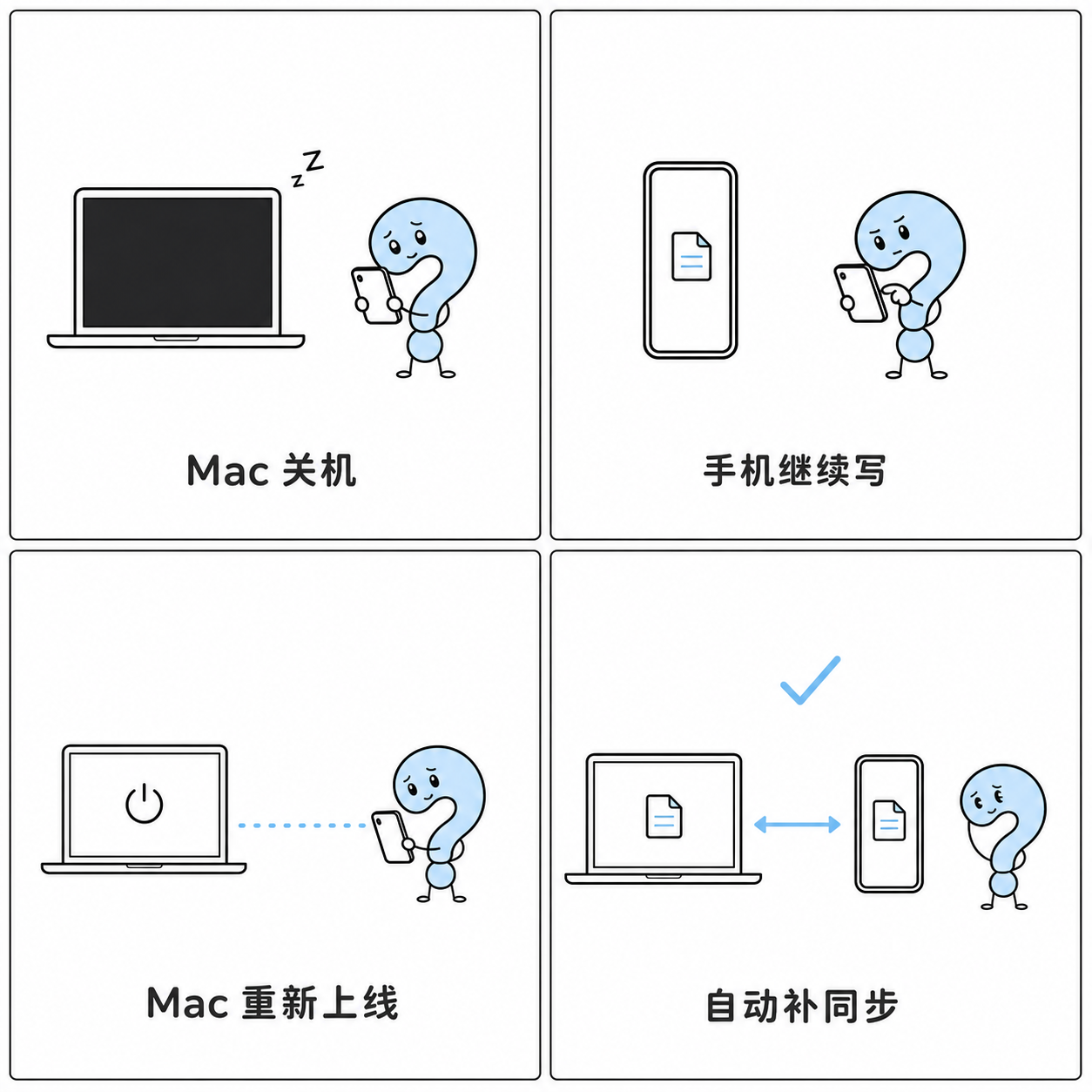
Syncthing does not keep an always-available cloud copy for you. At least two participating devices must be online for a while before a change can move between them. If the Mac at home is off, edits made on the phone stay on the phone. When the Mac comes online, the devices continue syncing.
The devices can be in different locations. Syncthing tries a direct connection and may use a relay when a direct path is unavailable. A company network may restrict these connections. Follow your company’s data and network rules if a work PC is involved, and confirm that Syncthing shows Connected.
Enable old-version protection
On a computer, open Edit for Obsidian Main.
- Open File Versioning.
- Choose Staggered File Versioning.
- Set Maximum Age to
30. - Save.
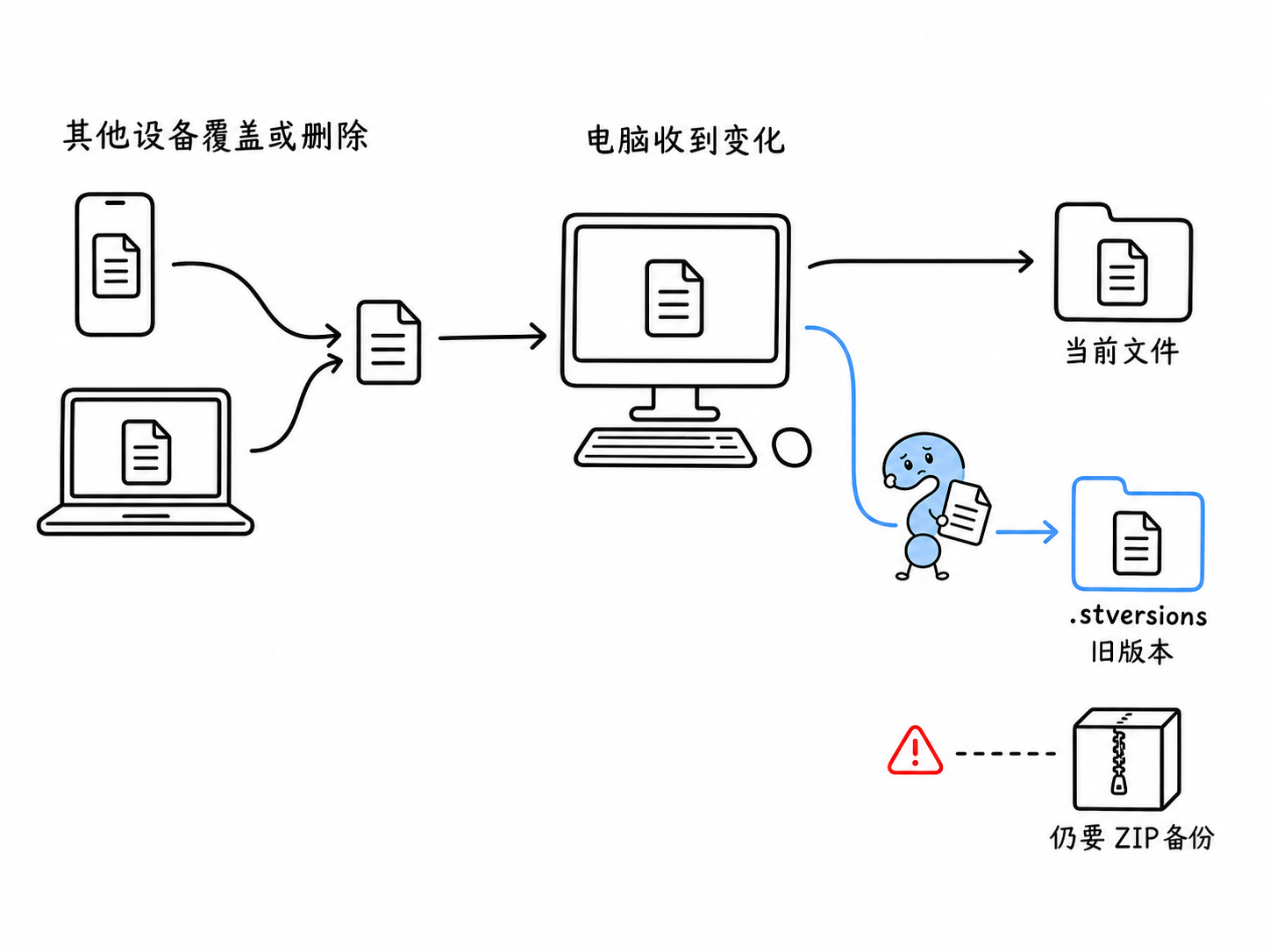
When the computer receives a replacement or deletion from another device, Syncthing puts the old file into .stversions. This can help recover an accidental deletion, but it is not a complete backup. Keep the independent ZIP archive.
Common problems
Android stays offline
Check Wi-Fi, background permissions, and battery restrictions. Open Syncthing-Fork and wait a minute.
Sync stops after closing the Mac window
Syncthing must remain running in the menu bar. Do not choose Quit, and confirm that launch at login is enabled.
Windows does not sync after a restart
Open Syncthing from the Start menu. If you reinstall it, keep launch at user logon enabled.
Obsidian cannot see the Android folder
Confirm that the folder is in ordinary shared storage:
Documents/Obsidian/MainVaultDo not put the vault inside Syncthing-Fork’s private application directory.
A folder shows Out of Sync
Close Obsidian on every related device and inspect the failed files in Syncthing. Keep the ZIP backup. Do not choose Override Changes, and do not delete the whole vault.
Start with a TestVault
For the first attempt, create a TestVault with only one note called sync-test.md. Wait for every participating device to show Up to Date, then edit the note from another device.
Once both directions work, back up and migrate the real vault. A small test keeps a first-time configuration mistake away from your actual notes.

